Viewing an Overlay Example
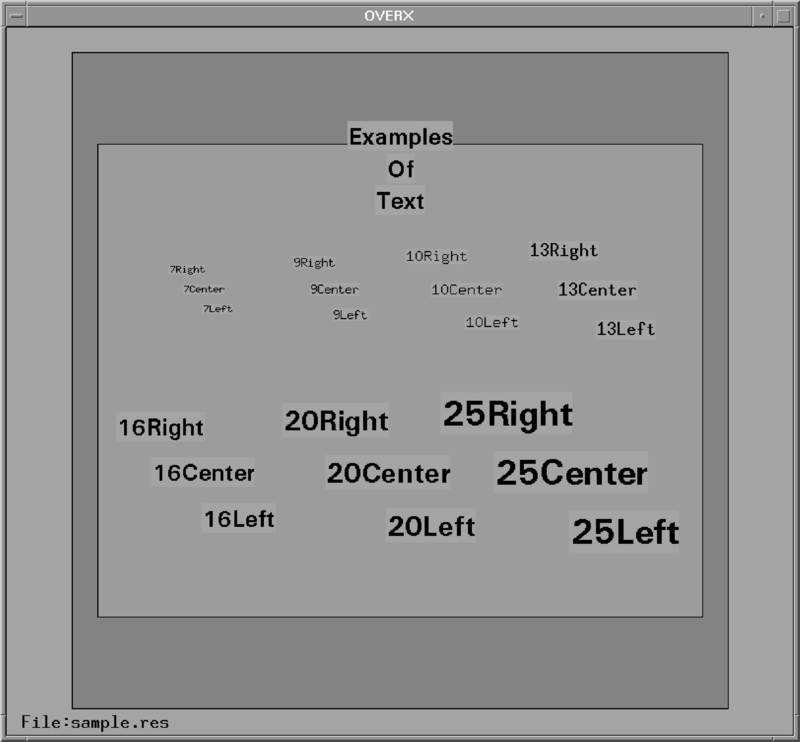
The overlay template directory contains a file called sample.ovr. It contains some text strings, a simple overlay area, and an underlay area.
To display sample.ovr:
-
Run the Overlay utility, specifying the name of the overlay
file, as follows:
$ cd ${IRIS_ROOT}/config_template/overlay

$ overlay ./sample
Overlay processes the file, which may take several seconds. If you supplied the
-voption, it responds with summary statistics as follows:12 (max 40) icon files, using 311 (max 12000) bytes: 0: dot9.xbm 1: dot7.xbm 2: dot13.xbm 3: airport.xbm 4: beacon.xbm 5: test.xbm 6: building.xbm 7: golf.xbm 8: hospital.xbm 9: park.xbm 10: poi.xbm 11: train.xbm Processing Overlay file. 10 (max 200000) points, 25 (max 400) strings, 9 (max 4000) fill points and 0 (max 10) gifs 1 (max 32) named layers: 0: Default Site Draw center: 42¯24.0'N 71¯ 6.0'W Fill center: 42¯24.0'N 71¯ 6.0'WThis summarizes the icon files found, then the number of end points, text strings, and fill points in the selected overlay. Finally the latitude and longitude of the draw and fill center are shown.
Overlay always draws range rings centered at the draw center, while the Product Output menu aligns it with the radar.
-
Overlay displays the overlay on the screen in using the colors
specified in Color Setup, as shown in the following figure.
Optional range rings or a latitude and longitude grid are drawn in green.
Filled areas have a maximum range, which is specified in the file. A circle is drawn at that range, the underlay areas are filled, then the circle is removed.
-
When you have finished looking at the overlay file, return to the terminal or window
where you invoked Overlay and press
CTRL/C.
Figure 1. Sample Overlay Display