

Managing Ingest Files
Ingest files are the data collected from the signal processor each time a task runs. An ingest file is not the same as a RAW data product, which stores ingest data in a compressed format.
Ingest files are cataloged by their associated tasks and stored on disk in an ingest summary file. IRIS uses an automatic Watchdog process to delete old ingest files.
The Ingest Summary menu provides a list of the ingest files currently on disk. Use the top part of the menu to choose the files that you want to display. The bottom part of the menu lists the ingest files.
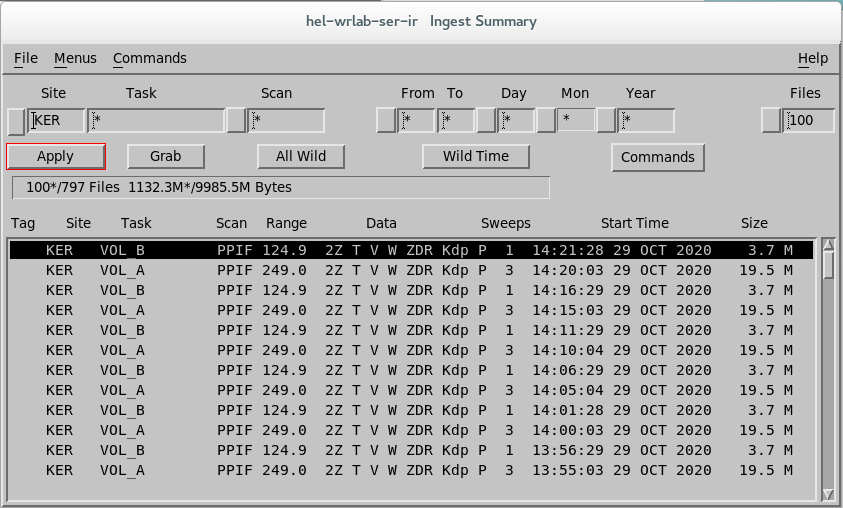
-
Select .
The Ingest Summary list in the bottom pane is sorted by time, with the newest files listed first.
- Tag
- Displays
kfor keep,dfor delete, or blank if no flag is set. - Site
- Shows the site ID for the radar site from which data were gathered.
- TASK
- Contains the name of the task.
- Scan
- Contains type of scan used to collect the data, such as RHI or PPI.
- Range
- Contains the value of the Max Range field, taken from the task configuration.
- Data
- Lists the data parameters (Z, T, V, W) for the task.
- Sweeps
- Shows the number of sweeps that were collected by the task. If the scan was halted prematurely, this column displays the partially completed task as N/M, even if the task was halted during the final sweep.
- Start Time
- Shows the time that the task started to collect data.
- Size
- Shows the total amount of disk space occupied by the ingest files for this run of the task.
-
Select an entry in the list and position the mouse cursor over any of the fields to
show the following options:
- Keep tags all
selected files with the keep flag so they are not deleted by the Watchdog.
This is necessary if you want to save ingest files, including those that have been restored from tape, for non-real time product generation in an analysis mode. For example, you might want to make a product tomorrow from today's ingest data.
- Clutter tags a selected file as a clutter map.
- Un-Tag removes delete or keep flags from the selected files.
- Delete tags all selected files with the delete flag to free more disk space for new ingest files.
- Keep tags all
selected files with the keep flag so they are not deleted by the Watchdog.
-
Use the Filter menu in the top pane to narrow the list down to
those files that are of interest by site, task, scan, or time.
- Site
-
Enter a site ID to select data from only one radar site or enter the wildcard character to select data from all sites.
Select Site to show a list of known sites. The contents of this list depend on the sites that are configured in the Setup utility.
- TASK
-
Enter the name of a task to filter for products generated by a specific task.
You can include wildcard characters in the task name.
For example, entering a product name of *PPI*_? selects all hybrid tasks that have
PPIsomewhere in their names. - Scan
- Enter a scan type in this field to select products of only one type, enter the wildcard character to select products of all types, or select from a list of types.
- From, To
-
Enter a range of hours to filter products by time of day.
You can also select from a list of ranges.
- Day, Month, Year
-
Enter a day, month. or year to filter products by date.
You can also select from a list of values.
- Files
- Control how many files to include in the list.
- Apply
- Select Apply to update the product list, based on your selection criteria.
- Grab
- If you have selected a product, select Grab to insert the product's site, type, product name, task, and date information in the filter fields.
- All Wild
- Select All Wild to return all the fields to the wildcard character.
- Wild Time
- Select Wild Time to change only the hours, month, day, and year fields to the wildcard character.
- Commands
-
Apply tags to the ingest files selected by the Filter menu:
- Keep tags all
selected files with the keep flag so they are not deleted by the Watchdog.
This is necessary if you want to save ingest files, including those that have been restored from tape, for non-real time product generation in an analysis mode. For example, you might want to make a product tomorrow from today's ingest data.
- Clutter tags a selected file as a clutter map.
- Un-Tag removes delete or keep flags from the selected files.
- Delete tags all selected files with the delete flag to free more disk space for new ingest files.
- Keep tags all
selected files with the keep flag so they are not deleted by the Watchdog.