

Overview of Quick Look Window
 |
This utility is a legacy feature used when viewing radar data with IRIS Analysis. When possible, Vaisala recommends viewing radar data with IRIS Focus. |
The Quick Look Window (QLW) displays IRIS Analysis products.
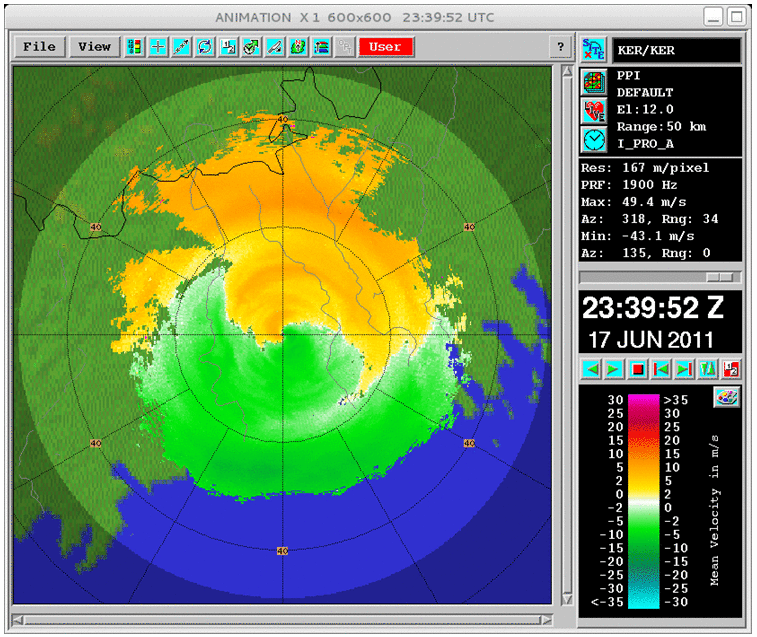
Title Bar
The title bar shows basic information, including:
-
Name of the window that was assigned by the operator in .
The example shows the name
wind #1. -
Zoom level selected in the View tool.
The example shows
X 1, indicating no zoom. -
Window size in pixels selected in the View tool.
This refers to the size of the image area. The actual window size is larger because of the borders and legends.
-
The data time of the displayed image.
 |
When naming windows, consider including the product name. For example, if a VIL product is assigned by the Product Output menu to be displayed automatically in the window, name the window VIL. Also, consider naming the window to match the name of the workstation "work space" in the Common Desktop Environment (CDE), if this is supported on your workstation. |
Tools
Icons below the title bar provide access to interactive functions such as loop configuration, track, cursor, forecast, and cross-section.
Select an icon to open the tool.
On the right of the tool area, the QLW Mode and the QLW Indicator alert operators to changes in the status of automatically assigned images in the QLW.
Legend
The legend provides tools for selecting radar sites, products and times, and displaying this information. You can also loop animations or browse single frames.
The color legend is displayed and labeled. Use the Color Scale to select default color scales assigned by the operator, or to make your own color scales.