

QLW Control and Monitoring
Quick Look Window Update Indicator
The Quick Look Window (QLW) update indicator alerts you to the status of the images displayed in the QLW. This allows you to see, even from a distance, that a window is set to display live data. The update indicator is next to the tool area OPT button.
Window Modes
The Quick Look Window operates in the following modes.
 (Green Background
means automatic updating from IRIS)
(Green Background
means automatic updating from IRIS)
-
Auto Mode
The image is updated automatically by the Product Output Menu (as set by the operator) with new images. This is non-interactive use of the window.
 (Red Background
means no automatic updating from IRIS)
(Red Background
means no automatic updating from IRIS)
-
User Mode
In this mode, you decide what images are displayed in the window and can be actively manipulated (for example, creating a cross-sections or tracks without an interruption from new products arriving from the Product Output menu). Images are not automatically displayed from the Product Output Menu.
 (Green Background)
-
Slide Mode
Images are displayed based on the Slide Show tool configuration.
 (Green Background)
-
Loop Mode
Images are displayed based on the Loop/Animation tool configuration and the Most Recent button is checked so new images are being displayed as they arrive from IRIS.
 (Red Background)
- Images are displayed based on the Loop/Animation tool configuration and the Most Recent button is NOT checked so new images are not being displayed.
 |
You can select User and Auto modes through Mode in the tools area. Loop and Slide mode are selected automatically when a slide show or animation/loop starts. |
In practice, you rarely need to manually switch the display mode, since IRIS does it automatically for you:
- When you first start to do something in the display, IRIS automatically switches from Auto to User. IRIS does not interrupt you by sending images while you are using the window.
- The QLW automatically switches to Auto mode after 5 minutes of inactivity.
Legend ON/OFF Button
 Legend ON/OFF Button
The legend area, title bar and scroll bars may by toggled off by the Legend icon which is located on the left side of the tool section. Right-click the mouse in the display window to restore the legend or if you are using a touch screen double tap the upper left corner (100 × 100 pixels) of the window.
Turning off the legend if you want to reduce the size of the windows so that you can fit more windows on your screen.
The start-up location of each window and whether the legend is on/off is controlled in .
|
With the legend turned off, you may want to enable the internal legend that shows a legend right in the display window instead of as a side menu. |
 | Turning off the legend is useful for "tiling" the display windows such as for creating a multi-panel slide show. |
Setting Operator Password
Some functions in the Quick Look Window are for operators only , since they can affect other Windows:
- Creating or deleting "home" reference points in the Cursor and Track tools.
- Creating or deleting names for virtual overlays (special combinations of various overlay layers) in the Display Options tool.
If you require access to these features, use the File tool to set the operator window password configured in .
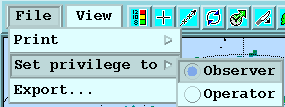
Select Operator and enter the password. Note that in general, the window password configured in is not the same as the UNIX operator password.
| When you are done, select File and set the privilege back to Observer. |