
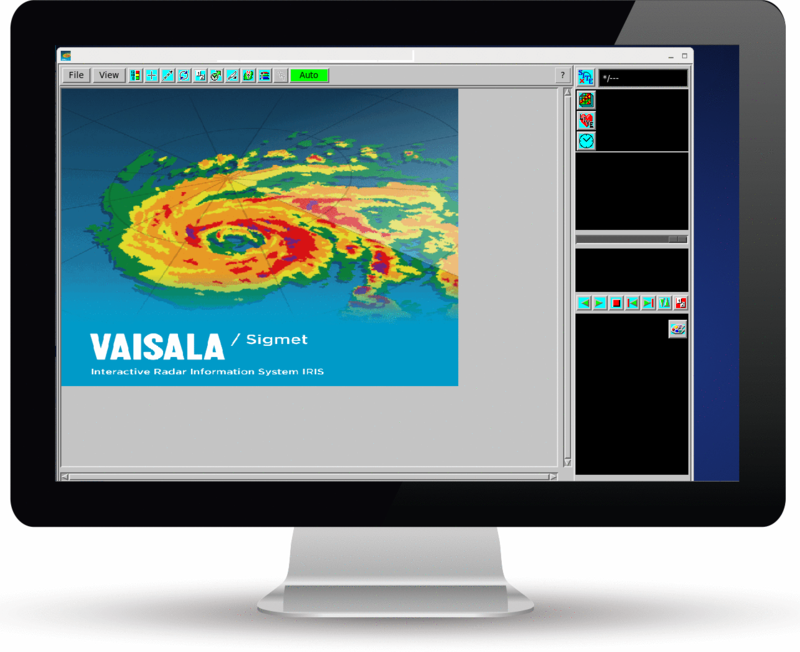
Configuring a Color Set
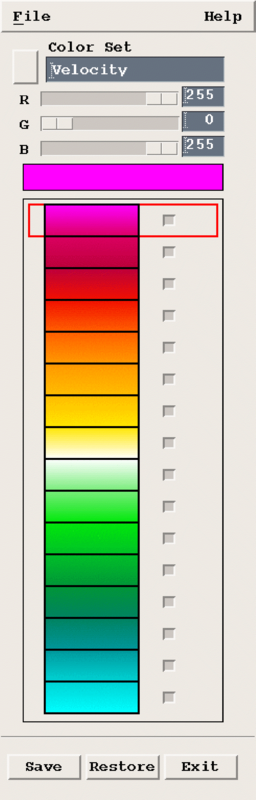
Each color cell can be either a solid color, or a gradient color which changes continuously to the next value.
For gradient colors, the color at the top seam is set to the same value as the bottom color of the cell above.
There can be up to 8 color sets, one of
which must be named Default.
 |
To create, rename, or delete color sets, see Configuring a Color Scale. |
-
Check the currently shown color set.
The Color Set menu shows the current color set.
- Select File to view the available color sets, including example color sets for common IRIS data types, one for gradient colors and one for solid colors.
-
To toggle between solid or gradient colors, select the buttons to right of the
colors.
If the button is pressed in, then the color cell is gradient.
-
To change a color set or create a new one (with a new order of colors) select .
The Color Set Configuration Menu opens. If you had made changes to the color scale, you are prompted to save or cancel your changes.
-
To change the colors in the color set, highlight the color level that you want to
change and use the scroll bars at the top to change the RVB values.
Your change are shown immediately in the color set (and in the color scale in the main menu).
You can select either the top or bottom of each color cell to adjust. For solid colors, either selection changes the whole cell.
- Select .