

Product Output: Product List
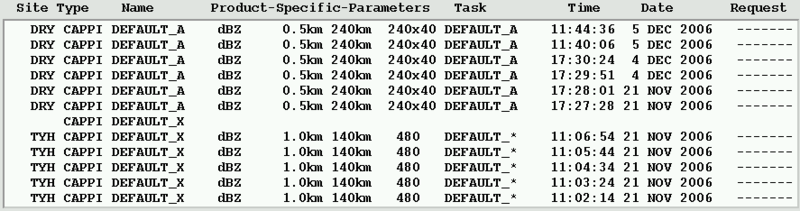
The product list at the bottom of the Product Output menu lists each product name on a header line, followed by the versions of the product that are currently on disk. Each version is identified by the time the data were collected, which is the start time of the associated task.
Site and Type
The Site field displays the ID of the radar site where data for the product was collected.
The Type field shows the type of the product, such as PPI or RHI.
 | You can right-click the fields to manage the files. See Flagging a Product. |
Name
The product name for the configuration of this product type.
Product-Specific Parameters
The standard product generation parameters shown in the following table are taken from the product configuration and displayed in Product-Specific Parameters.
| Product Type | Parameter 1 | Parameter 2 | Parameter 3 |
|---|---|---|---|
| BASE | ... | dBZ Threshold | Max Range |
| BEAM | Azimuth Limits | Elevation Limits | ... |
| CAPPI | Data Parameter | Height | Max Range |
| CATCH | Hours | ... | Max Range |
| FCAST | Speed & Direction | Data Threshold | Max Range |
| GAGE | Minutes avg | Rain/Disdro | ... |
| IMAGE | ... | ... | Max Range |
| MAX | Layer Bottom | Layer Top | Max Range |
| NDOP | List of Sites | ... | Max Range |
| PPI | Data Parameter | Elevation | Max Range |
| RAIN1 | Input Product | Minutes avg | Max Range |
| RAINN | Hours | ... | Max Range |
| RAW | Data Parameters | All/One | Max Range |
| RHI | Data Parameter | Azimuth | Max Range |
| RTI | Data Parameter | Start Az and El | Max Range |
| SHEAR | R, A, or E flags | Elevation | Max Range |
| SLINE | Elevation(s) | ... | Max Range |
| SRI | Melting level | Profile/Convection flags | Max Range |
| TDWR | CF Wind Speed | CF Wind Dir | CF Gust Speed |
| TOPS | ... | dBZ Threshold | Max Range |
| TRACK | Inputs Product | Area Threshold | Data Threshold |
| USER | Data Parameter | ... | Max Range |
| VIL | Min Height | Max Height | Max Range |
| VVP | Min & Max Height | Number of Steps | Bin Quota |
| WARN | Symbol & Area | Number of Inputs | Number of hits |
| WIND | Min & Max Height | ... | Max Range |
| XSECT | Data Parameter | Ctr Point R, AZ | Orientation Angle |
Resolution
The product-specific parameters for Cartesian products include the horizontal resolution of the product in pixels. For 3-D products, the vertical resolution is also listed, for example, 480×10.
The product output process always generates a display even if the output resolution does not match your display capabilities. It does this by skipping or duplicating pixels as required. For example, if you send a low resolution display to a medium resolution display device, such as a printer, the Product Output process duplicates each pixel to zoom the image on the printer to full size.
TASK
The name of the associated task.
Time
The date and time (local time) when the product data was collected.
Request
Use the Request field to request product output. Position the mouse cursor over an entry in the product list and select Send.
The menu shown depends on the entry you select in the list.
If you select a header line from the list, you can choose to send all or only the next occurrence of the product to the output device. You can also select particular sites that you want to receive the output. Each site you select is marked with an asterisk.
After you issue the Send request, the Request field displays a message indicating the status of the request.