
Customizing the Server List
IRIS client menus run locally on your workstation. You can connect these menus to your local IRIS server or other servers where IRIS is running.
When you run the IRIS menus for the first time, you must define the list of IRIS servers that you want to be able to access.
 |
The server that is running on your local
workstation, |
-
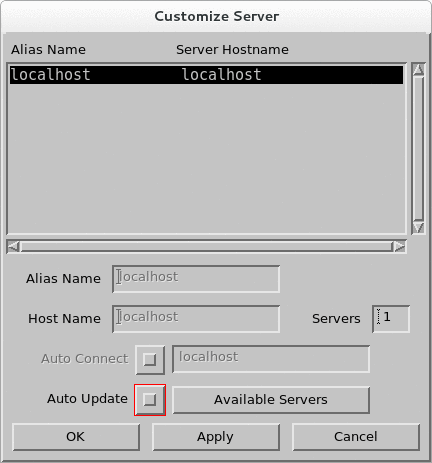
To increase or decrease the number of servers allowed in the list, enter a number in
the Servers field.
If the number of servers is larger than the number of known servers, unused entries are listed as Button Name entries.
If the number of servers is smaller than the number of entries in the list, entries are removed, beginning with the last server in the list.
-
On the IRIS menu, select .
The top of the server menu contains the list of servers. The bottom of the menu contains the fields for adding or changing server definitions.
-
Select a list entry.
This places the server information in the fields at the bottom of the menu.
-
Type the server details:
- Alias: server name.
- Host Name: server's node name, that is, the network node name of a server where IRIS is installed.
-
Select OK to add the server to the list.
The server list is stored on disk so that the entries you make in one session are available in the next.
- Select Apply to save your changes.