
Configuring Tasks
Use the TASK Configuration menu to create or modify radar tasks.
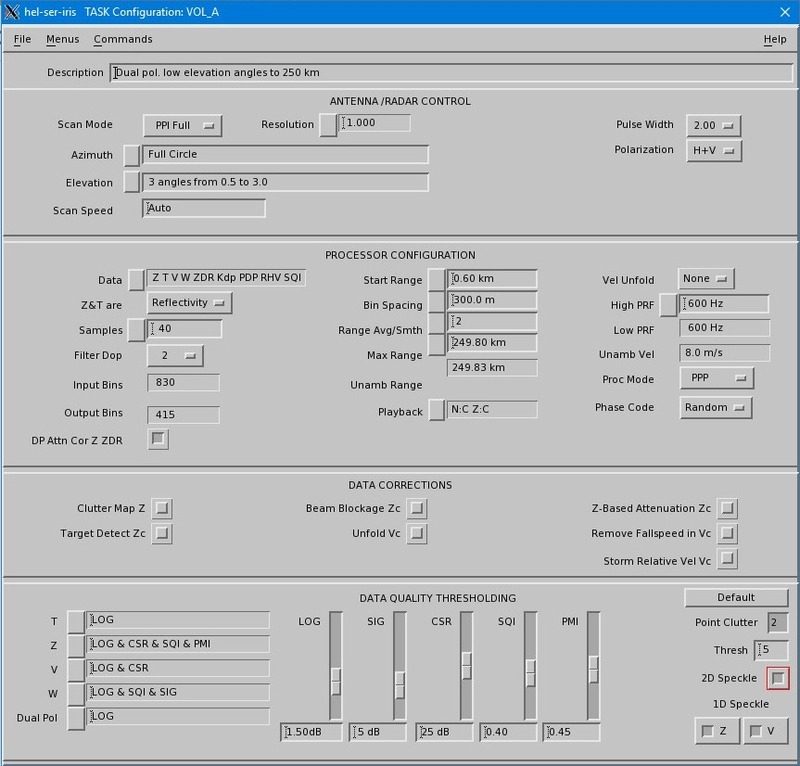
| Menu Pane | Description |
|---|---|
| Antenna/Radar Control |
Sets up radar and antenna operations. |
| Processor Configuration |
Sets up the output data, ranges and averaging used by the signal processor. |
| Data Correction |
Determines corrections made from output data. See Data Corrections. |
| Data Quality Thresholding |
Sets up the threshold levels and criteria for real time data quality control. |
- To create a new task, select .
-
Enter a task name and description.
- Configure the task using the options in the menu.
-
To edit the configuration of a task, do one of the following select .
The TASK Configuration menu opens showing the task configuration for this task.
For unscheduled tasks, more than one copy of a task can be in use at any time.
Note that:
- If a task is scheduled, it cannot be modified.
- Only one user can edit a particular task at a time.
- Select to save the task configuration.
- Use TASK Scheduler to schedule and execute the task.