
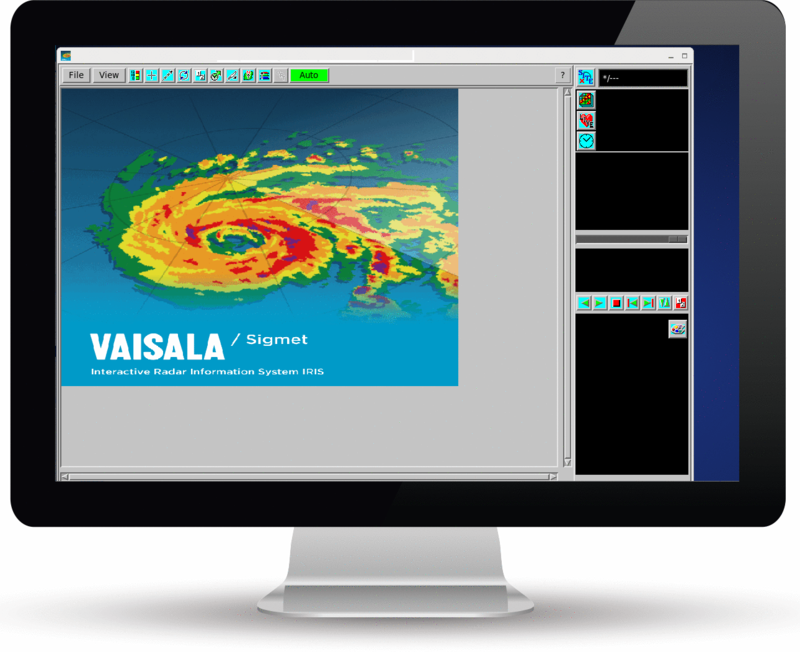
Running Radar from the Radar Status Menu
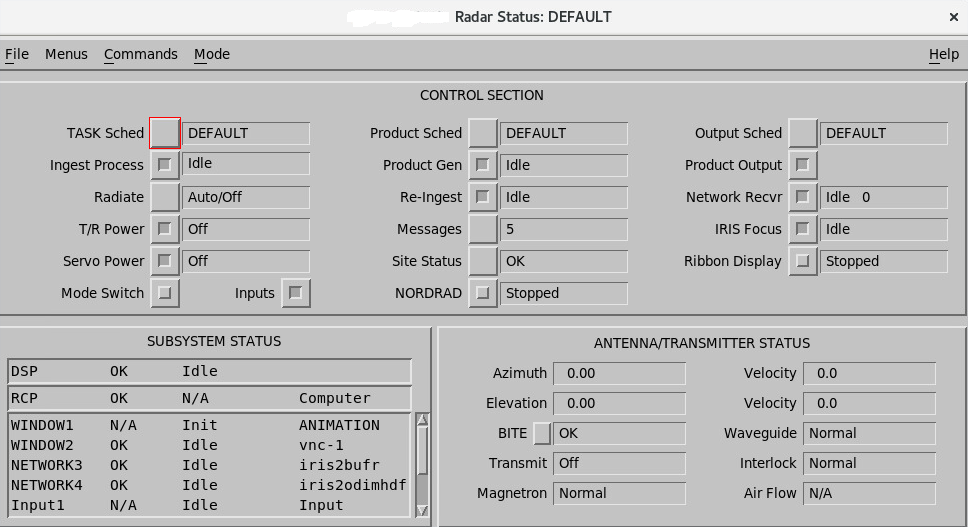
The Radar Status menu provides tools for running, configuring, controlling, and monitoring an IRIS radar or analysis system.
Because it involves real-time processes, the
Radar Status menu is a radarop menu. Anyone may
view the menu.
 |
The On most radars, with |
 |
The name assigned to the Radar Status menu defines a complete mode of operation. To set up a mode of operation, set-up and save the Radar Status menu. |
- Make sure IRIS has started.
-
Select .
When IRIS starts, the IRIS
DEFAULTconfiguration loads. -
If you want to use a mode other than
DEFAULT, select and then a configuration file from the list.
CAUTION Do not set the
DEFAULTIRIS configuration for the Radiate switch to come up as On or Auto if it could represent a hazard to personnel.For installations where this could be a problem, create a
DEFAULTfile which starts the radar with Radiate and Antenna Servo as Off, so the antenna does not start scanning automatically when the IRIS command is issued. -
Check the status of the devices to make sure all subsystems function normally.
In particular, check that the RCP status is Computer and not Local. If the status is Local, set the mode switch on the radar console so IRIS can control the system.
- Verify that the Radar Process is On. Toggle real time display On or Off, as required.
- Toggle T/R Power and Servo Power on.
-
Set Radiate to Auto or
On, as required.
Auto allows IRIS to automatically turn the transmitter off when the system is idle.
-
To check or schedule tasks or products:
- If tasks are scheduled and one is running, check that the Ingest Process shows the name of the active task, and the antenna speed and position indicators show that the antenna is moving.
- Schedule additional tasks or products, if needed.