
Mode Switching
Manual Mode Switching
- Select and select the new mode.
- Load a new configuration in the Radar Status menu.
RCP Mode Switching
In RCP mode switching, RCP controls the system mode. This mode is only applicable to a radar system.
Mode switching is normally used for switching between redundant systems due to fault detection.
When RCP mode switching is enabled in IRIS, socket mode switching and status product mode switching are unavailable. RCP can choose one of the following:
-
Force the mode to switch. This disables all other choices, so manual mode switching and automatic mode switching are disabled.
-
Enable the other choices. In RCP mode switching, the Automatic Modes Switching button is controlled by the RCP.
For more information, see the appendix on dual radar systems in RCP8 User Guide (M211320EN).
Socket Mode Switching
In socket mode switching, modes are supplied by a socket message. Use this mode to:
- Switch modes based on input from another software system
- Trigger mode switch based on a Bitex status (in this case the input is an IRIS message).
In socket mode switching, RCP can do one of the following:
- Force the mode to switch. This disables all other choices, so manual mode switching and automatic mode switching are disabled.
- Enable the other choices.
In socket mode switching, the Automatic Mode Switching button is controlled by the socket.
 | This mode is only available when RCP mode switching is disabled. |
Status Product Mode Switching
Status product mode switching allows a system to slave its configuration to a master system based on the status products from that master.
Each time a status product arrives from that other system, the mode is forced to match.
This is used as part of a passive IRIS system, or to slave a RPG computer to a RDA computer in redundant systems.
You can change modes through manual mode switching or automatic mode switching.
Automatic Mode Switching
In automatic mode switching, mode transitions can be controlled by warning products.
This is used to change modes based on weather. Between times, you can change modes manually.
You can define up to 16 situations in which the IRIS configuration is automatically switched. For example, you may want to switch configurations automatically when a wind shear is detected.
Because configurations can also be switched when a warning is absent, you can define the conditions under which to automatically switch back to a default configuration. A series of warning products can be chained together, triggering a series of actions, each requiring a different configuration.
| Mode Switch is unavailable if RCP mode switching or socket mode switching are enabled. |
Defining a Series of Automatic Mode Switches
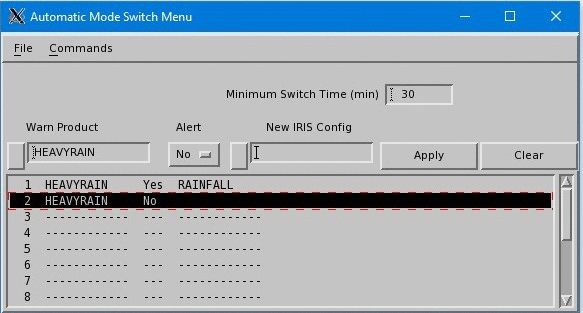
- Select .
-
Enter the information in the fields:
Minimum Switch Time— Minutes that must pass before the configuration can switch again.
Warn Product— Enter the name of a warning product directly into this field, or select a product from the list of products. When this warning is encountered (or when it is absent) the IRIS configuration switches automatically.
Alert— Set to Yes if the configuration should switch when the warning is encountered. Set to No if the configuration should switch when the warning is absent.
New IRIS Config— Name of a configuration directly into the field, or pop up a list of configurations to choose from. This configuration is loaded in the Radar Status menu when the warning condition is met.
-
Select Apply to add the definition to the list;
Select Clear to start again.
- Repeat Steps 2 - 3 for up to 16 warnings.
-
To discard your definitions, select .
This loads the most recently saved definitions.
- Select .
Changing or Deleting a Definition
-
In the Automatic Mode Switch menu, select a definition from the
list.
The warning and configuration names are displayed in the fields above the list.
- To change the definition, enter a new warning product or configuration name if you want.
- To delete a definition, set the Alert field to "- - -" .
- Select Apply.