
Installing RVP10 (RDA) firmware
Before installing RVP10 (RDA) firmware, make sure that:
- The second Ethernet port has been configured. See Configuring the system and network.
- IFDR10 is physically connected to the port.
If you have installed or upgraded the RDA software, you must update the firmware running on IFDR10 to be compatible with the installed RDA software.
- Reboot the computer.
- Login as radarop.
-
If IRIS / RDA services are running, turn them off.
-
Verify that all services have stopped:
# ps_irisIf there are services running, stop them using the service or systemctl commands or manually kill them.
You must be logged in as root to use the kill command:
# su # kill <process ID number> - If not powered, power on IFDR10, and wait for it to boot.
- If the network cable is not attached, attach IFDR10 to the second Ethernet connection configured for the 10.0.3.x network.
-
Verify that IFDR10 is accessible over Ethernet.
Run
pingletting at least 4 packets transmit, and press CTRL+C to exit program.Verify that there is 0% packet loss.
# ping 10.0.3.25410.0.3.254 is the default IP address of IFDR10.
-
Change to the repository where the image is installed (be default
/usr/bin):
cd /usr/bin -
Use the rdaflash utility to update the IFDR10 firmware:
rdaflash -ifdr10This takes several minutes. Do not interrupt programming.

CAUTION When programming starts, do not power cycle or reboot IFDR10 until rdaflashis successfully completed.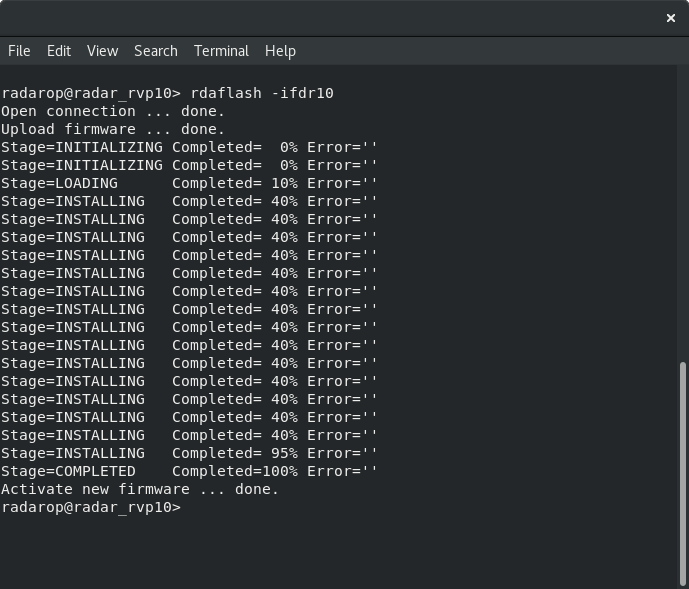
When the programming is complete, IFDR10 reboots.
- Reboot the computer and login as radarop.
-
Verify that the expected process are running with the command:
# ps_iris -
Configure RVP.
See RVP10 User Guide (M212604EN).
- If the upgrade is interrupted or not completed successfully, the unit stays in diagnostic mode on the next reboot so you can recover from the failure.
-
For RVP upgrades, if the RDA software boots, but is unresponsive, you can force the RVP
into diagnostic mode by sticking a paper clip in the inner most hole on the side of the
enclosure.
After entering the diagnostic boot mode, you can re-flash the IFDR10 software from the signal processor to recover from a corrupted image.
If the IFDR10 firmware upgrade is part of a software upgrade process, see Running Setup after upgrade.