
Using Bitex Customization Tools
The Bitex customization Tools allow you to create, delete, or move sub panels and data points.
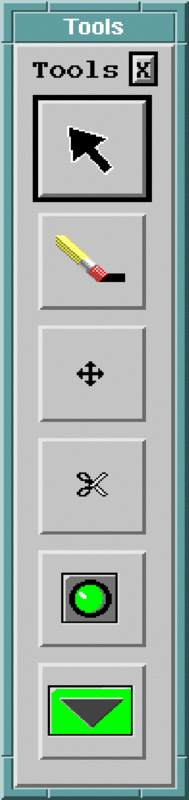
- To access the tool bar, in any Bitex panel, select .
-
Edit your panels using the options in the tool bar:
-
Erase Tool: Erases the next data point or sub panel.
-
Move Tool: Click, hold and drag the next data point or sub panel.
-
Cut / Paste: Cut the next data point or sub panel. When mouse is put over an unoccupied area and click again, pastes the object just cut.
-
Add Data Point: Add a new data point object to the next clicked position.
-
Add Sub Panel: Add a new sub panel data object to the next clicked position.
-
- To exit the tool, select the Pointer Tool in the tool bar.