
TS Archive Utility
Use the TS Archive utility to record and playback archived data.
The utility provides access to the TS Switch utility, playback and record modes, and a complete archive file inventory for managing disk space.
- Log in as operator.
- Start the TS Archive utility by typing: $tsarchive
-
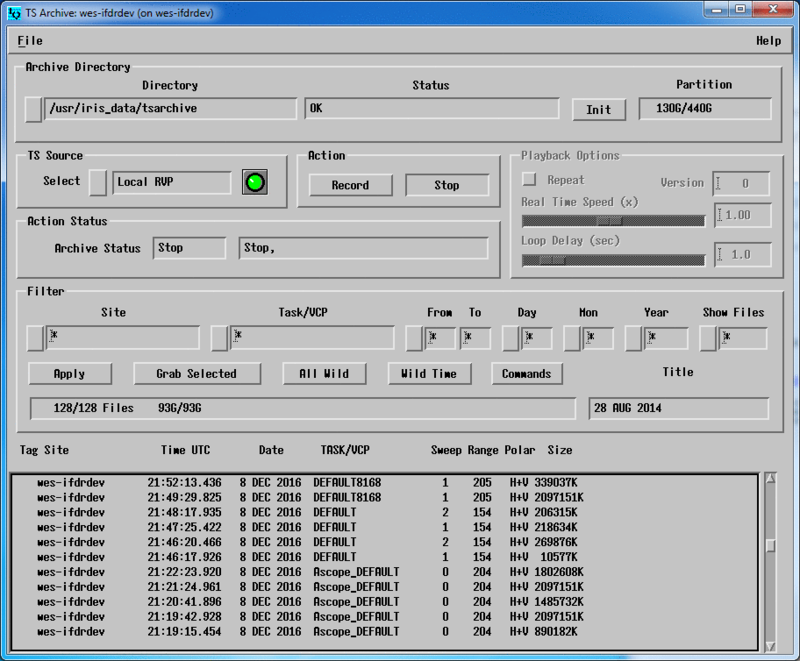
Under Archive Directory:
- Use the Directory section to select which archive directory
to use, or to add another directory.

Vaisala recommends you first create the directory from the command prompt. $mkdir /bigdisk/tsarchive - Check Status to see information about the chosen archive directory.
-
Select Init to initialize the directory. You are prompted to type a title for the directory and to verify the contents of the directory.
The directory must be empty or contain ONLY
tsarchivefiles.If a directory contains
tsarchivefiles, you are prompted for permission to delete them.For system security reasons, Init can only delete TS data files.
If you must delete other, non-
tsarchivefiles in the directory, you must use the UNIX rm command to manually delete them. -
Check Partition to view the ratio of used disk space over total disk space for the selected archive directory partition.
For example, if the selected archive directory is /bigdisk/tsarchive, the Partition field shows the used/total disk space for /bigdisk/.
The values displayed include all file types in the partition.
- Use the Directory section to select which archive directory
to use, or to add another directory.
-
Select TS Source to launch the TS Switch
utility and chose the source used to record data.
See TS Switch Utility.
You can now record or play back data.
-
Use Filter area to manage files that are stored on a disk,
including displaying data for a certain site, task, and time.
Option Description Site Enter a site ID to select data from only one site, or enter the wildcard character to select data from all sites.
Task A Task refers to either an IRIS task name (also called a volume control procedure (VCP)) or an Ascope saved configuration file name.
Enter the name of a task in this field to narrow the list down to only those products generated by a specific task.
You can include wildcard characters in the name. A question mark (?) matches any single character, an asterisk (*) matches any sequence of zero or more characters.
For example, enter a task name of *PPI*_? to select all hybrid tasks with
PPIsomewhere in their names.From, To Enter or select a range of hours in these two fields to narrow the list of products by time of day.
Day, Month, Year Enter or select a day, month. or year to narrow the list of products by date.
Show Files Control how many files to include in the list.
Apply Update the file list based on your selection criteria.
Grab Select a product and then select Grab to insert a selected file information in the filter fields.
All Wild Return all the fields to the wildcard character.
Wild Time Change the hours, month, day, and year fields to the wildcard character.
Commands Shows the following operations that you can perform on the
tsarchivefiles selected from Filter:- Playback: Tags files for playback. A P appears in the left column.
- Delete: Deletes files. A D appears in the left column.
- Remove Tags: Untags any Delete or Playback tags.

Caution The commands apply to all of the
tsarchivefiles that match the filter.If you put in wildcards everywhere and give theDelete command, every TS archive file could be deleted.
-
View TS Archive logs in the Log area.
Archive Log Column Description Site TS site used to create the data.
Time and Date UTC time and date when the data were acquired.
Task/VCP Name of the associated tasks or Ascope file used for controlling RVP.
Sweep Number of sweeps (for example, 360°) in the Task/VCP.
Range and Polar Range and polarization of the TS data.
Size Size of the file.
-
Right-click a file or group of files in the Log area to show the
following commands:
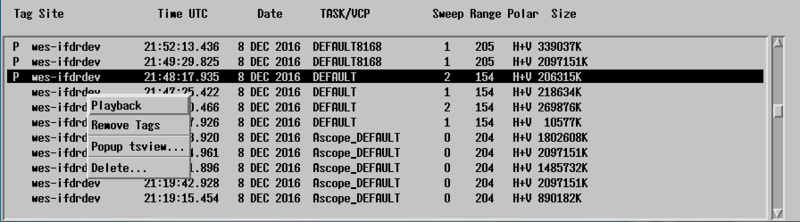
- Playback: Marks the files with a P in the Tag column. When selected, only the tagged files are played.
- Delete: Marks the files with a D in the Tag column, and deletes the files. This is helpful when you select a large list of files for deletion.
- Remove Tags: Clears the D or P tags.
- Popup tsview: Provides file information in another window.