

Runways Utility
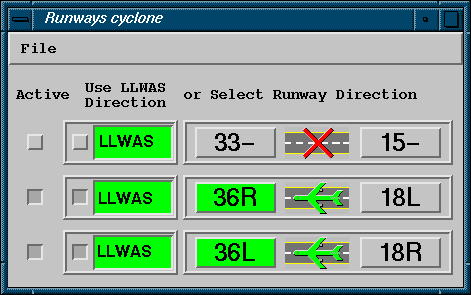
The runways utility is used by controllers to specify which runways are active. This information is used by the TDWR/LLWAS Integrator algorithm to filter alerts from inactive arenas. For example, each runway arena has two names, for example, 33L_3MD is the same physical arena as 15R_3MF. The runway direction specified in the runways utility determines which of these names is used to identify the arena. Also, if a runway is not used, the entire runway and all of its associated arenas may be set to inactive.
The runways utility must be run on the same IRIS node where the Integrator is run (typically this is the IRIS workstation assigned to generate products), however you can export the runways display to another workstation on the network. Thus the runways utility can be run from any networked workstation.
Whether you are on a local or remote
workstation, you must have privilege to log on to the system. Note that most installations
allow Observers to view the runways utility, but only Controllers (and perhaps Operators) can
change the runway direction. The OPERATORS line in the
runways.conf file specifies which users can control the
runways utility. See Configuring Integrator and Runways Utility - runways.conf.
Starting the Runways Utility
The runways utility may be configured to start automatically on your system. This is configured by the system manager. See Configuring Integrator and Runways Utility - runways.conf.
In a command line terminal, type:
$ runways &If you are on a different workstation you
can use rlogin <nodemame> or sigterm
<nodename> to open a terminal on the node where the integrator is run.
Note that if you use the rlogin approach, before running runways you must
type the following:
$ export DISPLAY=< yournodename >:0.0This exports the runways display to your workstation. If the runways display does not appear on your workstation, then you may need to type the following on a terminal on your workstation (not the remote system):
$ xhost +This authorizes windows from other workstations to appear on your display. Check with your system manager if you want this automatically enabled.
Stopping the Runways Utility
To exit the runways utility select in the upper left. Note that the settings specified in the runways utility are used by the Integrator after you exit.
Setting Active/Inactive Runways
Each runway that is configured in runways.conf must have a line in the menu as shown at the beginning of this section. The button in the far left column activates/deactivates the runway. Inactive runways are indicated by the "X" symbol over the runway, as shown in the example for 33/15.
Selecting the Runway Direction
The runway direction is indicated by the green color of the runway name and the direction of the aircraft icon. The runway direction can be selected either manually by clicking the runway name, or automatically by LLWAS (if available). To enable the LLWAS automatic selection, click the button on the LLWAS column for each runway.
LLWAS Status
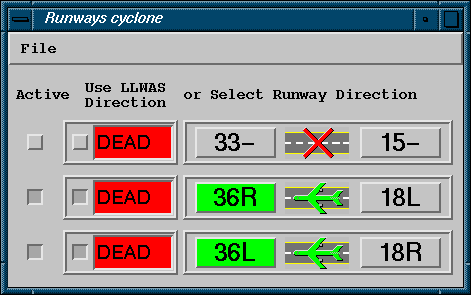
If LLWAS is available on your system, its communication status with the integrator is displayed in the LLWAS column. The image above shows the display DEAD in red background to indicate the LLWAS is not communicating to the Integrator.