
TSC Editor Menu
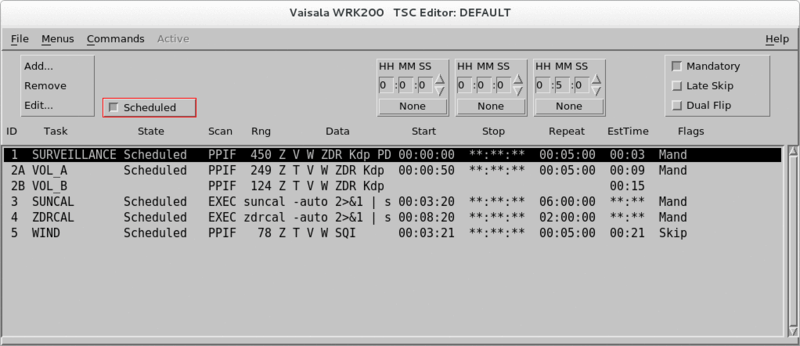
The TSC Editor lists tasks that make up the schedule.
 | You cannot delete the DEFAULT configuration, the currently running configuration, or the configuration currently being edited. |
- Select .
-
To open a task schedule, select .
A list of task schedules appears.
-
To set the state of a task, place the cursor over the State
field and select one of the following:
- Scheduled - The task runs according to the schedule.
- Idle - The task is on standby and does not run.
For hybrid Tasks, all are scheduled together so only one state is displayed.
- Check the scan type being performed by a task (as defined in the task configuration) in the Scan field.
- Check the value of the Max Range (as defined in the task configuration) in the Range field.
- Check the first recorded data types (as defined in the task configuration) in the Data field.
-
To control when a scheduled task runs, select the Start,
Stop, or Repeat fields.
IRIS can schedule tasks to run at a specific time, or as soon as possible regardless of the clock time.
See Scheduling Automatic Tasks.
-
Use the tool above the list to change the times (hours, minutes, or seconds).
The time is based on a 24-hour clock and are either UTC or local based on a the system set-up.
-
Select None to clear the time selection.
None for Repeat time means that it runs continuously without pausing.
For hybrid tasks, the B and C parts are left blank because a hybrid task is treated as a single task for scheduling purposes.
-
-
To view the estimated time required to run a task, run the task at least once and
select .
This is helpful in creating new schedules. For example, if the run time is 00:05:30, do not schedule the task should to run more frequently than every 5 1/2 minutes.
-
Set scan priorities and resolve schedule conflicts with the
Mandatory and Skip options:
- Set Mandatory to yes to allow the task to interrupt a non-mandatory task when its scheduled time arrives.
- Set Skip to yes to let the IRIS skip the task if the radar is busy with another task when its scheduled time arrives. The task can run late by up to 60 seconds before it is skipped.
For hybrid task, the B and C parts are left blank because a hybrid task is treated as a single task for scheduling purposes.
For more information on managing task priority, see Scheduling Automatic Tasks.
-
For dual IRIS systems that operate 2 different transmitter/receivers through the same
antenna, select Dual Flip
For example, when one of the systems finishes the scan, it gives up control of the radar to the other system. In this way, the 2 systems, perhaps operating at 2 different wavelengths, can take turns so that one system runs a task and then the other system runs a task.
For example, setting the Dual Flip flag to Yes on system A allows system B to run a task after A has completed its task. If system B does not start a task within 3 seconds, then system A is free to resume its tasks.
- When you save the currently running configuration, the change takes effect immediately.