
Configuring IRIS license setups
Before you can use IRIS/RDA software, you must request and set up a license.
-
Open the Setup utility by typing:
setup& -
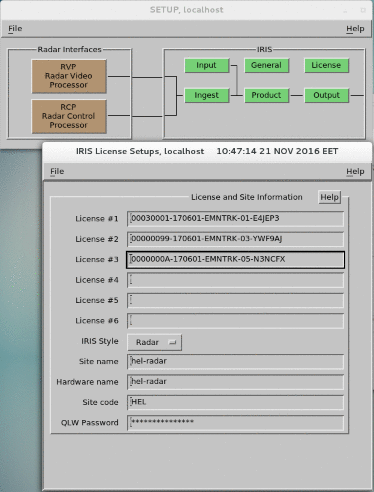
In the Setup utility, select
License.
-
In the terminal window, type: show_machine_code
The terminal prints the licensing information about this machine. For example:
--------------------------------------------------- Licensing Information for IRIS Version 10.0.0 --------------------------------------------------- Machine Code: EMNTRK Site Name: hel-radar Check Code: WPEFXE OS Name: Linux OS Release: 3.10.0-229.el7.x86_64 Host Name: localhost.localdomain Locking To: host -
Copy all the information under
Licensing Information for IRIS Version <version number> -
Contact your Vaisala representative and request an IRIS license.
Provide the information you copied in the previous step.
-
When you receive the license from Vaisala, return to and type the License 1, License
2, ... license codes in the order listed in the license.
Depending on your configuration, you may have codes such as:
- IRIS Features Code
- IRIS Product Code
- RDA Features Code
- Select and .
-
To confirm that your license is correctly setup, start IRIS by typing:
sirisCheck that the IRIS Quick Look Window starts.
If the IRIS Quick Look Window does not start, see Making Quick Look Windows (QLW) appear.