

Configuring COMP
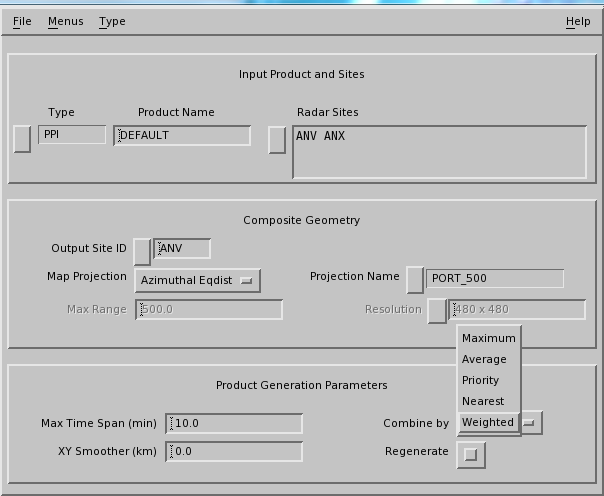
-
Under Type, select the product type and name that you want to
composite.
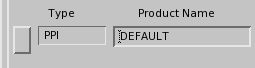
The products from the different sites must all have this name.
IRIS only allows you to composite the following products that are licensed on the compositing computer:
- BASE
- CAPPI, including
3D CAPPI (
dBZandR) - HMAX
- MAX (side panels are removed)
- PPI
(
dBZandR) - RAIN1
- SHEAR
- SRI
- THICK
- TOPS
- USER
- VIL
- WARN
-
Select Radar Sites and use the radar site selection tool to load
the sites that you want to composite
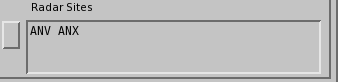
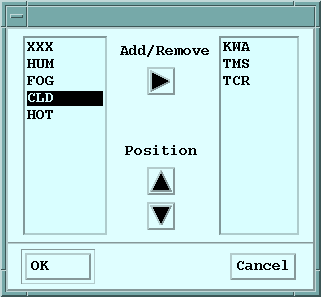

The order of the sites is important. The highest priority (first on the list) site that is in the composite (some may be missing) determines the "Data Time" that is associated with the product.
It is also used for filling data in overlapped regions if you select the Priority combining rule.
-
In Output Site ID, specify the site used to identify the
composite.
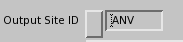
This does not have to be an actual radar site. You can use a "Virtual Site" associated with the projection or your network.
Sites are configured by your system manager in the Setup utility. See IRIS and RDA Utilities Guide (M212925EN).
-
In Map Projection, define the common projection.

Input products are remapped to this.
Typically, map projection configurations are done by your system manager.
The Max Range and Resolution fields are determined by the projection, that is, you cannot edit these.
-
In Max Time Span (min), define the maximum time difference that
the algorithm can allow for compositing products.

The product times for volume scan products correspond to the start of the volume scan (the Data Time).
For PPI it is the actual sweep time. A value of 5 minutes is probably close to the maximum that you would typically allow. If you are unsure, consider how quickly things move in a typical loop.
This number must be less the period between volume scans in your input data.
-
In Output Smoother, add additional smoothing if needed.

In many cases, the input products are smoothed.
Smoothing is computationally intensive, especially for 3D CAPPI cubes. If your workstation is too busy, you may want to reduce the smoothing. -
In Combining Algorithm, select the algorithm that is used in
regions where the radars are overlapped.
The options are Maximum, Average, Priority, Nearest, or Weighted (per the site list).
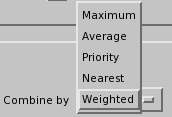
Maximum is recommended for filling blanked or blocked regions.