

Ribbon Display Testing with
tdwr_sim
 | Warning Do not run the
tdwr_sim test utility during normal system operation as it may interfere
with the signaling of actual warnings. |
To test the ribbon display and for training
purposes, Vaisala supplies the tdwr_sim utility. The utility outputs a
simulated TDWR product with alerts for selected corridors to verify that the ribbon displays
are functioning. Note that this does not verify that warnings are properly generated by the
IRIS system.
-
Start a terminal and type:
$ tdwr_sim -
When prompted to Enter Corridor Count, enter the number of corridors
that you have on your system.
In the example that has been used in this appendix there would be four (
33A,33D,15A,15D). The maximum count supported by the simulator is 16. -
Press ENTER.
The corridor names are displayed line-by-line. You can type arbitrary text to generate a test message.
A sample session is shown below:
Enter Corridor Count [4]: 4 Enter Alert type for Corridor 0 (15-A)[ ]: Enter Alert type for Corridor 1 (15-D)[ ]: MBA Enter Alert type for Corridor 2 (33-A)[ ]: Enter Alert type for Corridor 3 (33-D)[ ]: Sending product to IRIS. Enter Corridor Count [4]:tdwr_simsends a simulated TDWR product to IRIS, which is transmitted to each ribbon display that is configured to show alerts for the selected corridor (in this case 15–D).This causes the ribbon display to have a warning message as shown below.
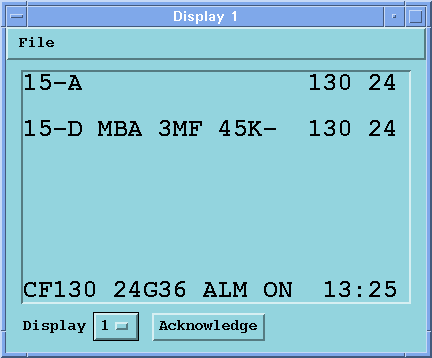
-
To clear an alert, press the SPACE BAR to replace the warning with a blank line.
If no new message is sent to the ribbon displays for 150 seconds, the text NO DATA AVAILABLE is shown on all ribbon displays.
-
To stop
tdwr_sim, type CTRL+C.